How to Find Your MAC Address and Device Key (and Add Your Playlist From Your Phone)
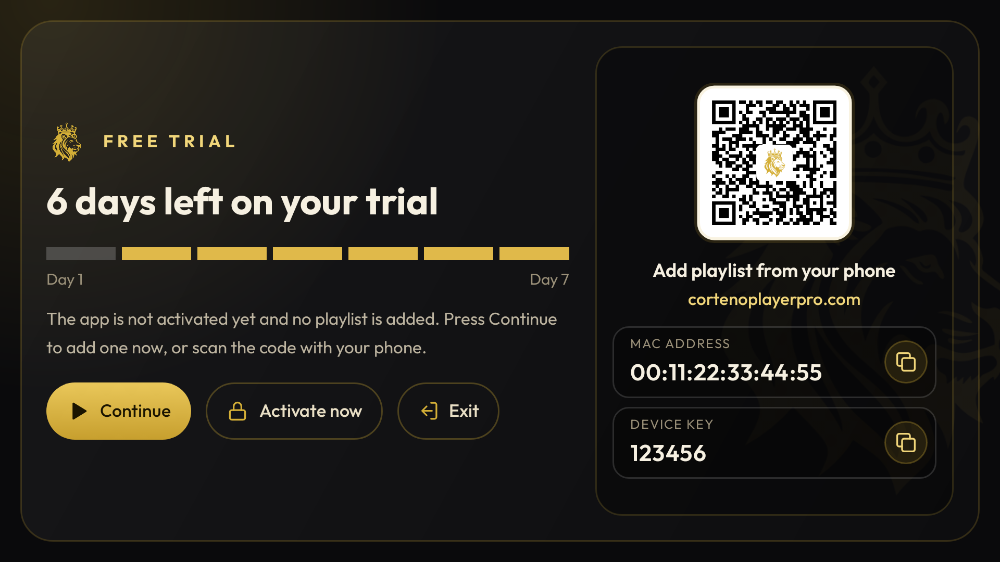
Typing a long playlist link with a TV remote is no fun. With Corteno Player Pro you don't have to: your TV shows a MAC address, a Device Key and a QR code. Scan it with your phone, paste your playlist there, and it appears on the TV a few seconds later.
This guide shows you where to find these details on every device, and how to use them step by step.
Good to know: Corteno Player Pro is a media player only. It doesn't include or sell any channels, playlists or other content. You add your own playlist from a provider you're allowed to use.
The short answer
- Open Corteno Player Pro.
- Go to the playlist screen: it's the first screen you see when no playlist is added yet.
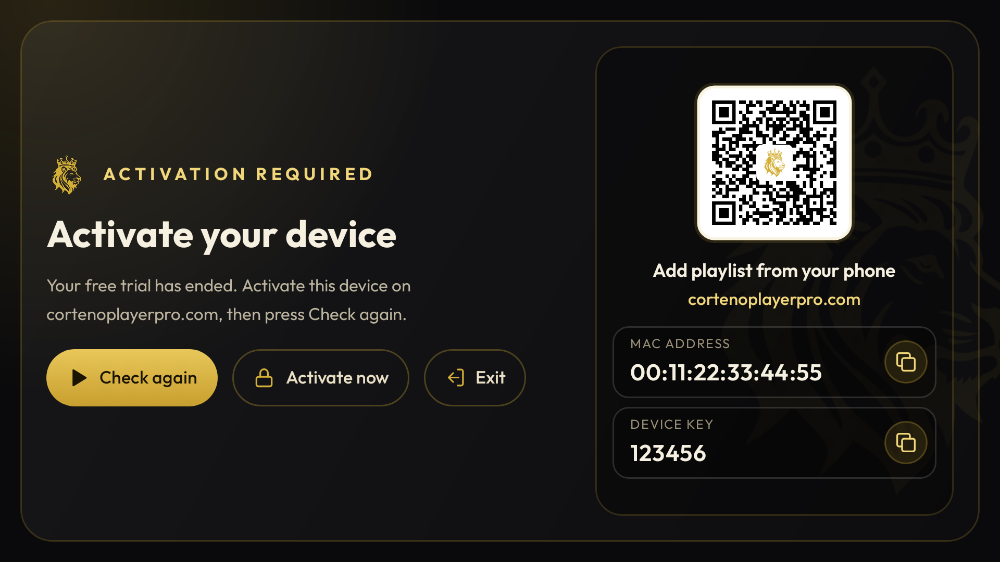
- Your MAC address and your 6-digit Device Key are shown there, next to a QR code.
That's all you need. The rest of this guide explains what to do with them.
What are the MAC address and the Device Key?
The MAC address is the ID of your device, written like 00:11:22:33:44:55. Corteno uses it to recognise your TV, your Fire TV Stick or your PC. You don't need an account, an email address or a password: the MAC address is your account.
The Device Key is a 6-digit code that protects your device. Only someone who can see your TV screen knows it. You need both the MAC address and the Device Key to change your playlists on the website.
Keep them private. Never post your Device Key in a comment, a group or a video. With the MAC address and the Device Key, anyone could change the playlists on your device.
Where to find them on each device
Fire TV Stick and Fire TV
- Open Corteno Player Pro from Your Apps & Channels.
- The playlist screen shows the MAC address, the Device Key and the QR code.
- Already added a playlist? Open the settings of the app and choose Playlists: the same details are shown there.
Not installed yet? Follow our Fire TV installation guide with the Downloader code 1448164.
Android TV, Google TV and TV boxes
It works the same way as on Fire TV: open the app, and the playlist screen shows your MAC address, Device Key and QR code.
Android phone or tablet
Open the app. The playlist screen shows the same details. On a phone you can simply type your playlist directly in the app, but the website is still useful to manage several devices from one place.
Windows PC
Open Corteno Player Pro on your PC. The playlist screen shows the MAC address and the Device Key. On Windows, the "MAC address" is a stable ID created for your PC, so it doesn't change when you switch between Wi-Fi and cable.
Why the MAC in the app can be different from your TV settings
Your TV's system settings may show a different MAC address (for example one for Wi-Fi and one for Ethernet, or a random one for privacy). Always use the MAC address shown inside Corteno Player Pro. That's the one the website and the activation use.
Reinstalling the app on the same device keeps the same MAC address and Device Key.
Add your playlist from your phone in 2 minutes
This is the easiest way, and it saves you from typing with the remote.
- On your TV, open Corteno Player Pro and leave the playlist screen open.
- On your phone, open the camera and scan the QR code on the TV. It opens the "My playlists" page with your MAC address already filled in.
- Type your Device Key (the 6 digits shown on the TV) and log in.
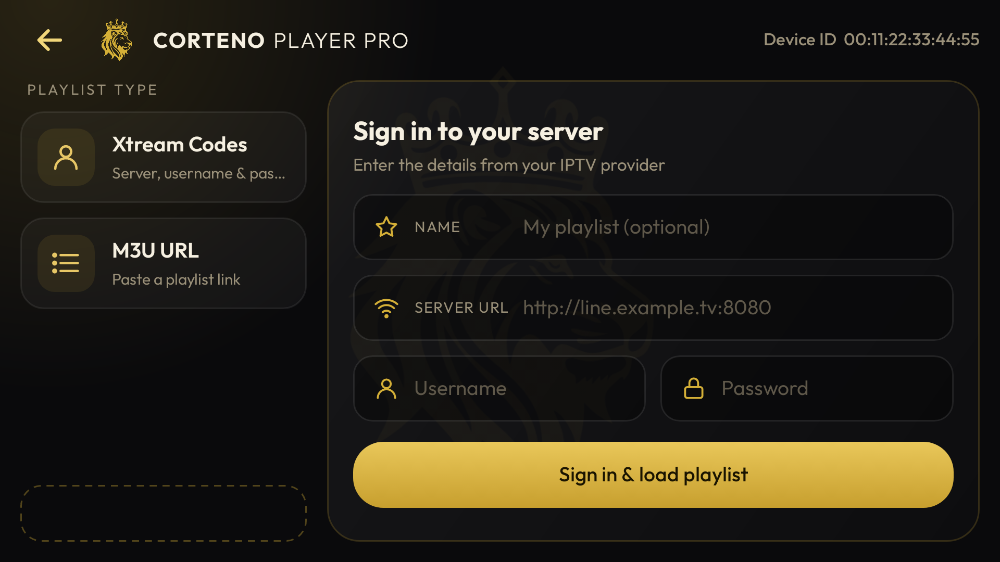
- Choose Add playlist:
- paste your M3U link, or
- upload an M3U file, or
- enter your Xtream Codes login (server, username, password).
- Give your playlist a name, for example "Home".
- Optional: set a PIN. The link is then hidden on the website, and nobody can change or delete the playlist without the PIN.
- Back on the TV, press Reload. Your playlist appears in a few seconds.
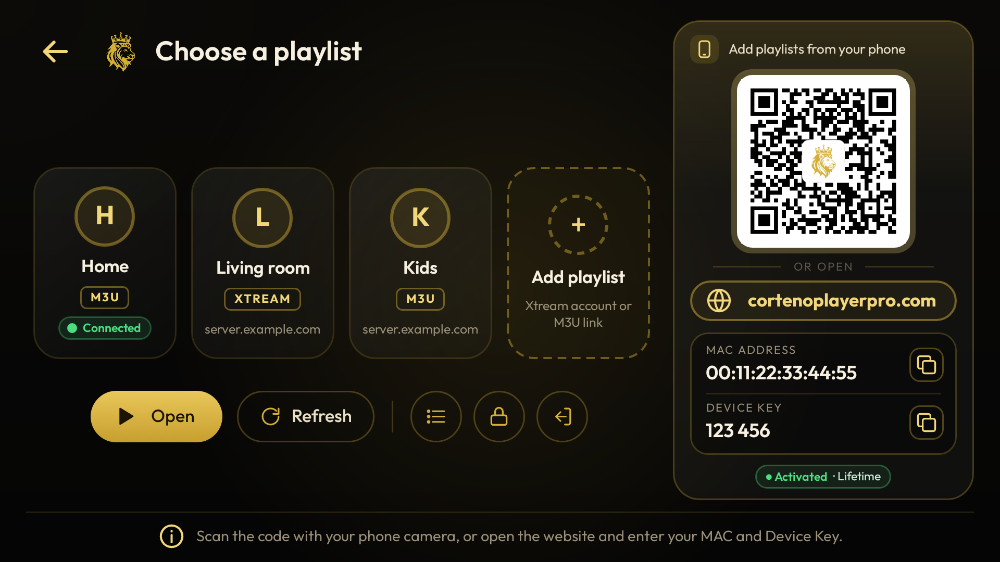
No QR scanner? Go to cortenoplayerpro.com/manage on any phone or computer and type the MAC address and the Device Key yourself.
You can add up to 20 playlists per device and switch between them in the app.
Activate your device
Your 7-day free trial starts the first time you open the app, with every feature unlocked. To keep using Corteno Player Pro after the trial:
- Go to the Activation page.
- Type the MAC address shown in the app.
- Choose 1 year or Lifetime and pay once by card.
- In the app, press Reload. No reinstall is needed, and your playlists stay as they are.
The activation is linked to one device. Each TV, Fire TV Stick or PC has its own MAC address, its own trial and its own activation.
Something doesn't work?
"Wrong MAC address or Device Key" on the website Check every character: 0 (zero) and O (letter), 1 and l look alike. Copy the MAC address exactly as the app shows it.
The QR code doesn't open anything Make sure your phone's camera can read QR codes (most do), or type the address cortenoplayerpro.com/manage yourself.
I added the playlist but nothing changes on the TV Press Reload in the app. If the playlist still doesn't load, the link or the login may be wrong or expired: check it with the provider of your playlist.
I changed my TV The new device has a new MAC address. Install the app on it, note the new MAC address and Device Key, and add your playlist again. Need to move an activation? Contact us with both MAC addresses.
FAQ
Where is the Device Key in Corteno Player Pro?
On the playlist screen of the app, right under the MAC address, next to the QR code. It's a 6-digit number.
Is it safe to share my MAC address?
Only on cortenoplayerpro.com or with our support. Never post your Device Key publicly: together with the MAC address it lets someone change your playlists.
Does the MAC address change if I reinstall the app?
No. The same device keeps the same MAC address and Device Key.
Can I use one activation on two TVs?
No. Each device has its own MAC address and needs its own activation.
Do I need an account or an email address?
No. Your MAC address and Device Key are all you need to manage your playlists.
Does Corteno Player Pro give me a playlist?
No. It's a media player only. You add your own playlist from a provider you're allowed to use.
Ready? Open the app, scan the QR code and add your playlist from your phone. Manage my playlists → · Download Corteno Player Pro →

Player only. Corteno Player Pro provides no channels, playlists or other content. Add your own playlist from a provider you are allowed to use.